Skip to content

One click to your
perfect setup

Design your drive around you. You can customize your dashboard with

your favorite widgets to match your preferences and usage patterns.

“Customizable Dashboard” text shown on a blue modular UI dashboard illustration.
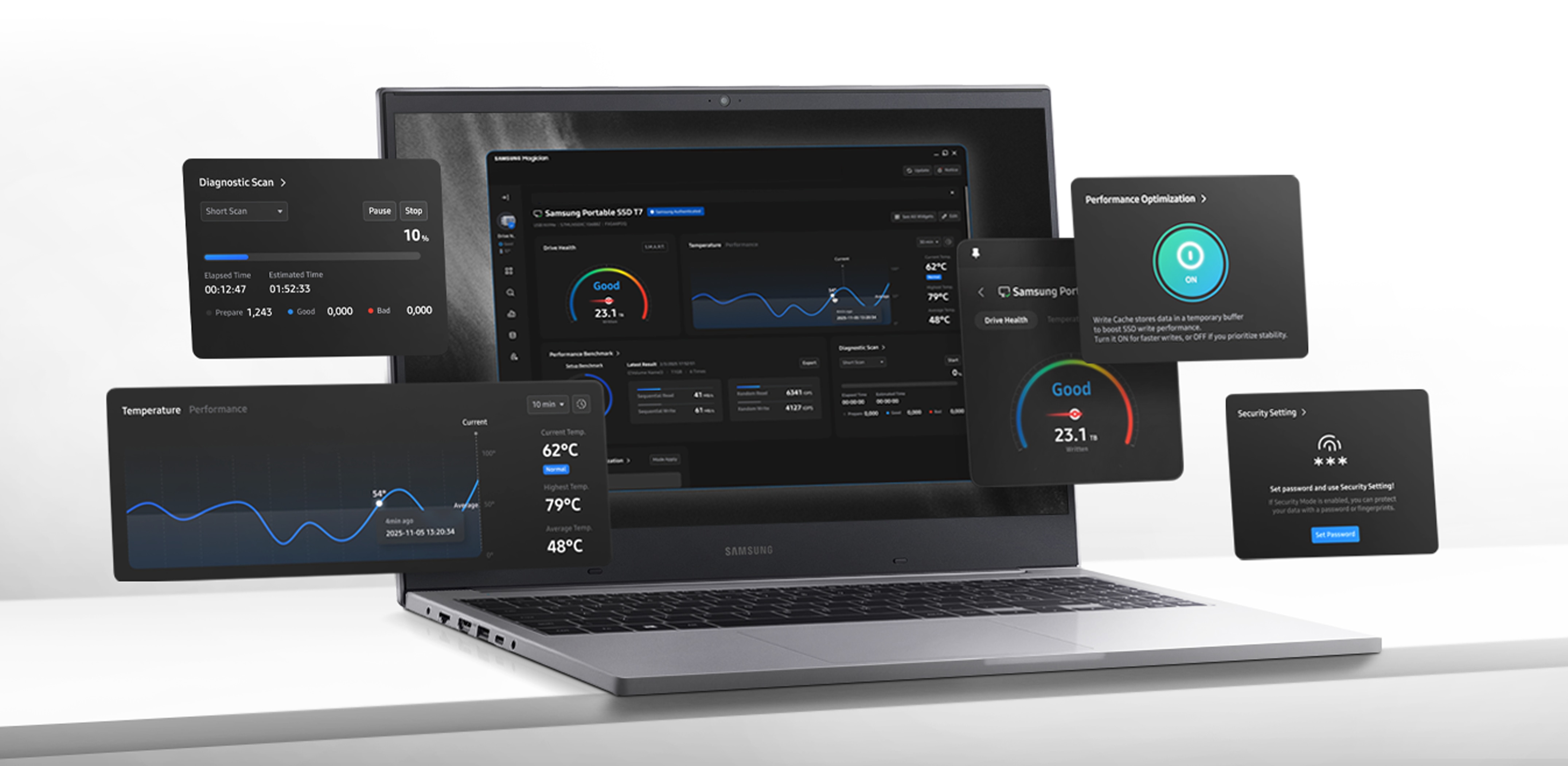
A laptop displays the Magician 9.0 software dashboard. In the top right corner, the text reads: Customizable Dashboard. Various widgets float in front of the screen, including Diagnostic Scan, Temperature, Performance Optimization, and Security Settings.
Know your SSD, instantly Know your SSD, instantly Know your SSD, instantly

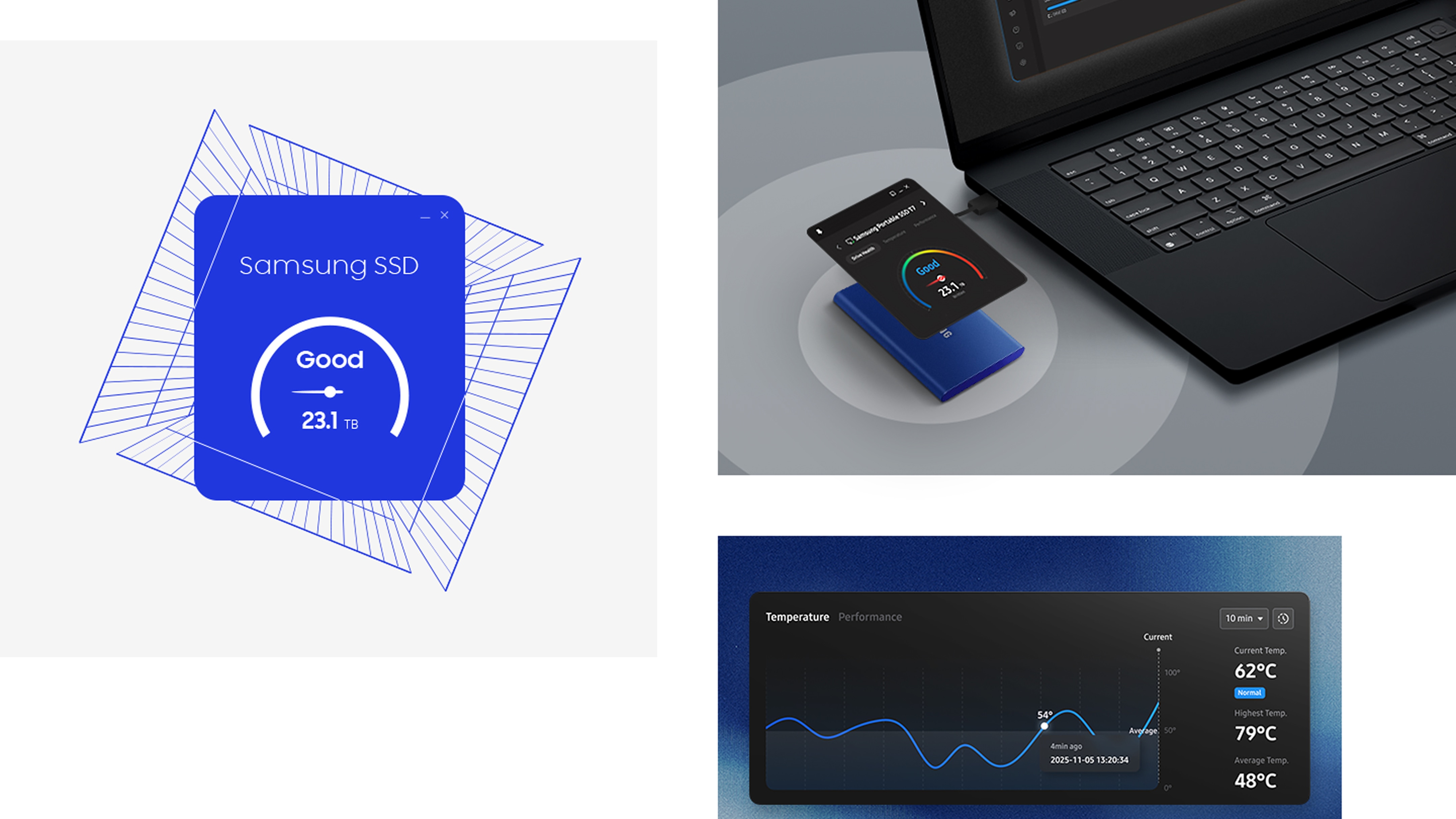
Get real-time SSD health at a glance. One simple dashboard gives you a clear view of your drive status so you can check system compatibility, get update alerts and keep performance at its peak.
Get real-time SSD health at a glance. One simple dashboard gives you a clear view of your drive status so you can check system compatibility, get update alerts and keep performance at its peak.

Get real-time SSD health at a glance. One simple dashboard gives you a clear view of your drive status so you can check system compatibility, get update alerts and keep performance at its peak.

On the upper right, a Samsung drive connected to a laptop and the Drive Health widget floating above the drive. On the lower right, the Temperature widget is shown. On the left, the Drive Health widget shows a 'Samsung SSD', 'Good' score and 23.1TB.
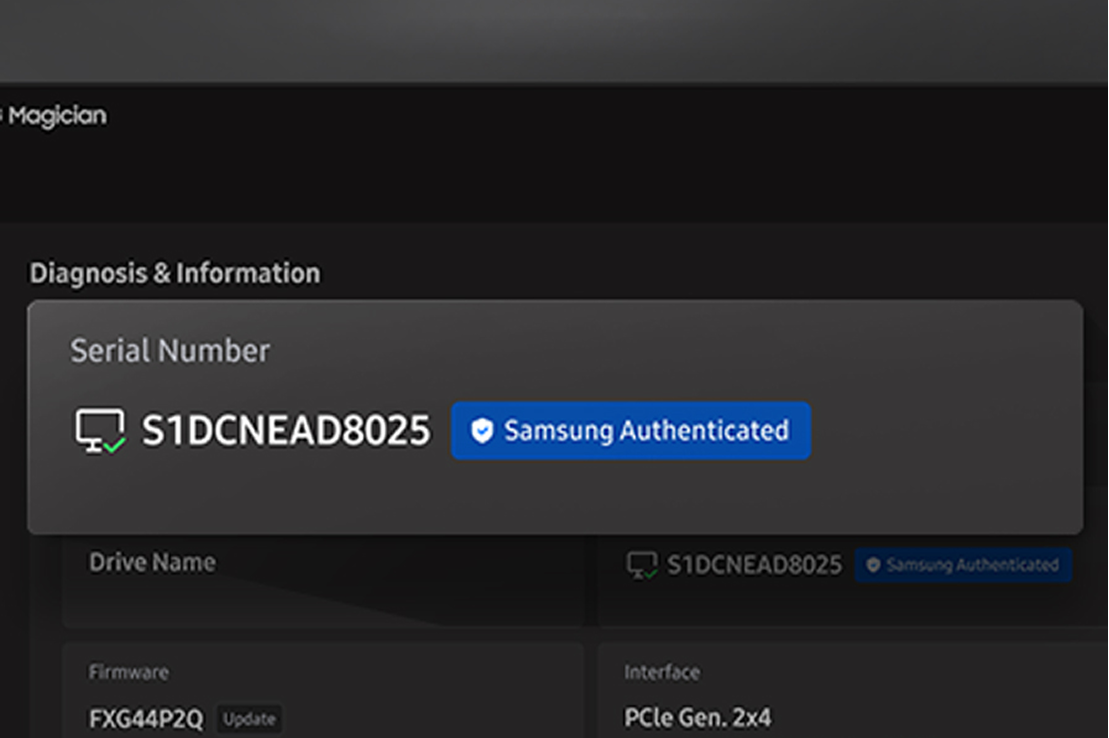
Using Genuine Authentication, the serial number can be seen to verify that your product is Samsung Authenticated.
Genuine Authentication Genuine Authentication Genuine Authentication

Verify the authenticity of your Samsung SSD to ensure optimal performance and system stability. A quick check for peace of mind and peak reliability.
Verify the authenticity of your Samsung SSD to ensure optimal performance and system stability. A quick check for peace of mind and peak reliability.

Verify the authenticity of your Samsung SSD to ensure optimal performance and system stability. A quick check for peace of mind and peak reliability.

*Internet connection required for authentication.
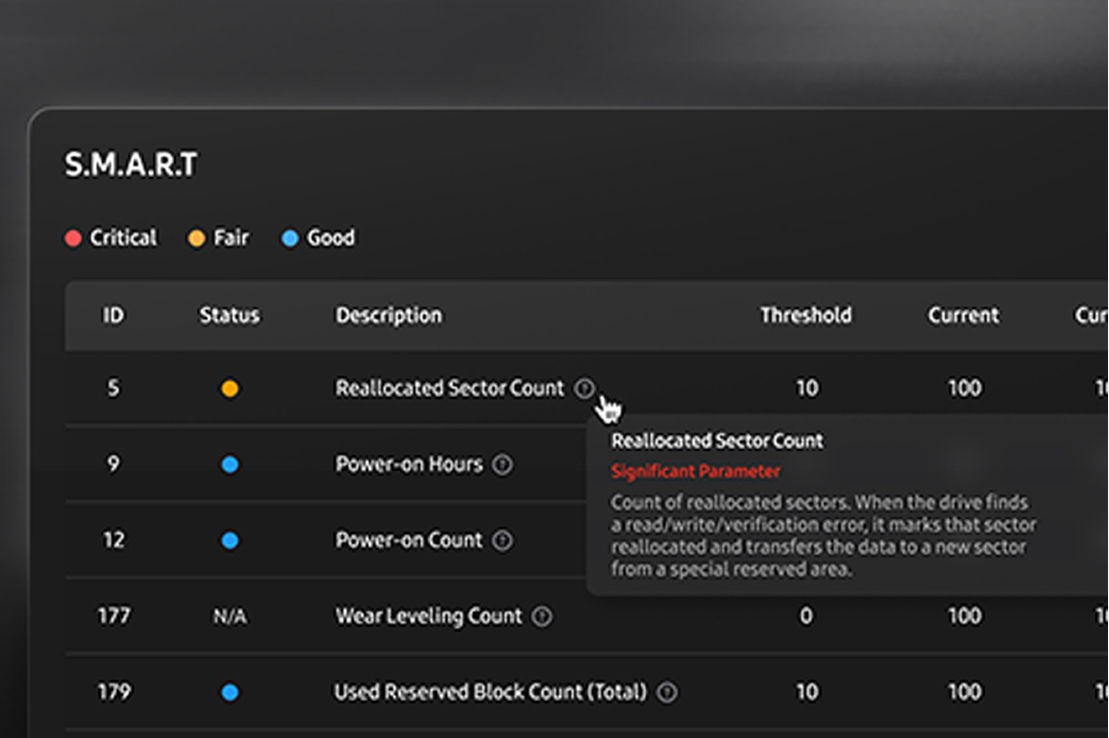
S.M.A.R.T Check is active and shows the overall condition of the drive, including Reallocated Sector Count, Power-on Hours and more.
S.M.A.R.T Check S.M.A.R.T Check S.M.A.R.T Check

Spot signs of trouble before it starts. Built-in diagnostics provide a detailed read on drive health and detect early signs of failure — because detection and protection beat recovery.
Spot signs of trouble before it starts. Built-in diagnostics provide a detailed read on drive health and detect early signs of failure — because detection and protection beat recovery.

Spot signs of trouble before it starts. Built-in diagnostics provide a detailed read on drive health and detect early signs of failure — because detection and protection beat recovery.

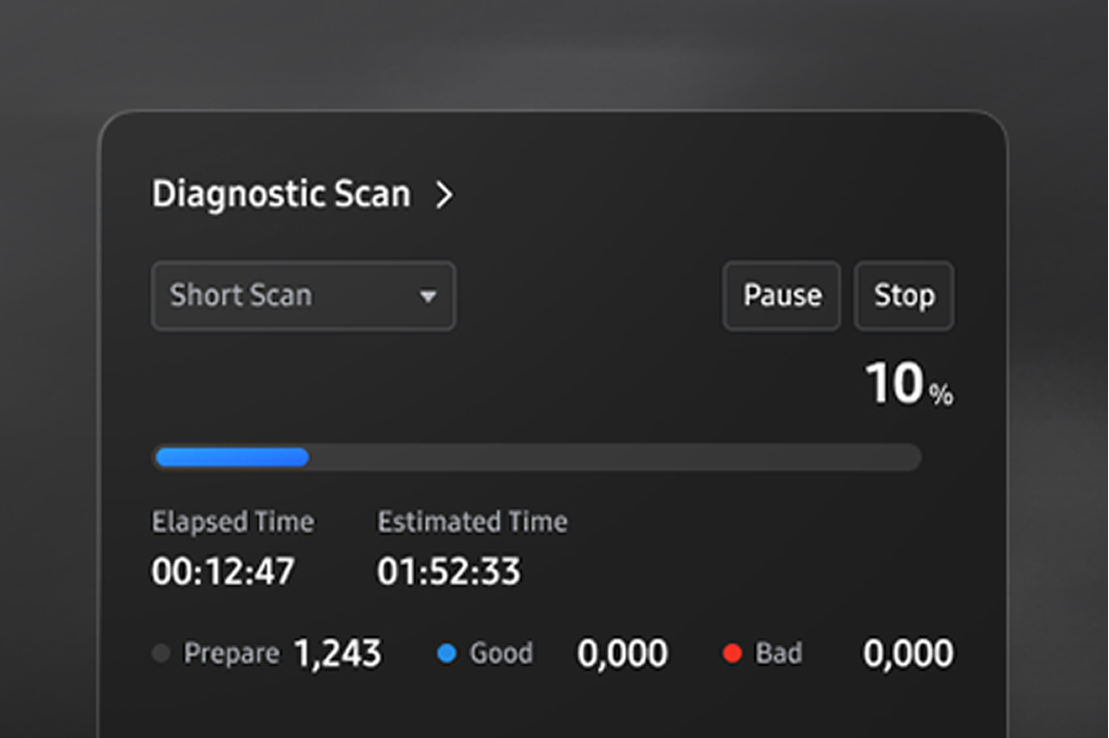
Diagnostic Scan is seen running a Short Scan to check the overall condition of the drive.
Diagnostic Scan Diagnostic Scan Diagnostic Scan

Using Diagnostic Scan, you can run a quick test to check for potential issues or functional errors in your SSD. Troubleshooting made fast, simple and effective.
Using Diagnostic Scan, you can run a quick test to check for potential issues or functional errors in your SSD. Troubleshooting made fast, simple and effective.
Using Diagnostic Scan, you can run a quick test to check for potential issues or functional errors in your SSD. Troubleshooting made fast, simple and effective.
Easy as move,
migrate, done

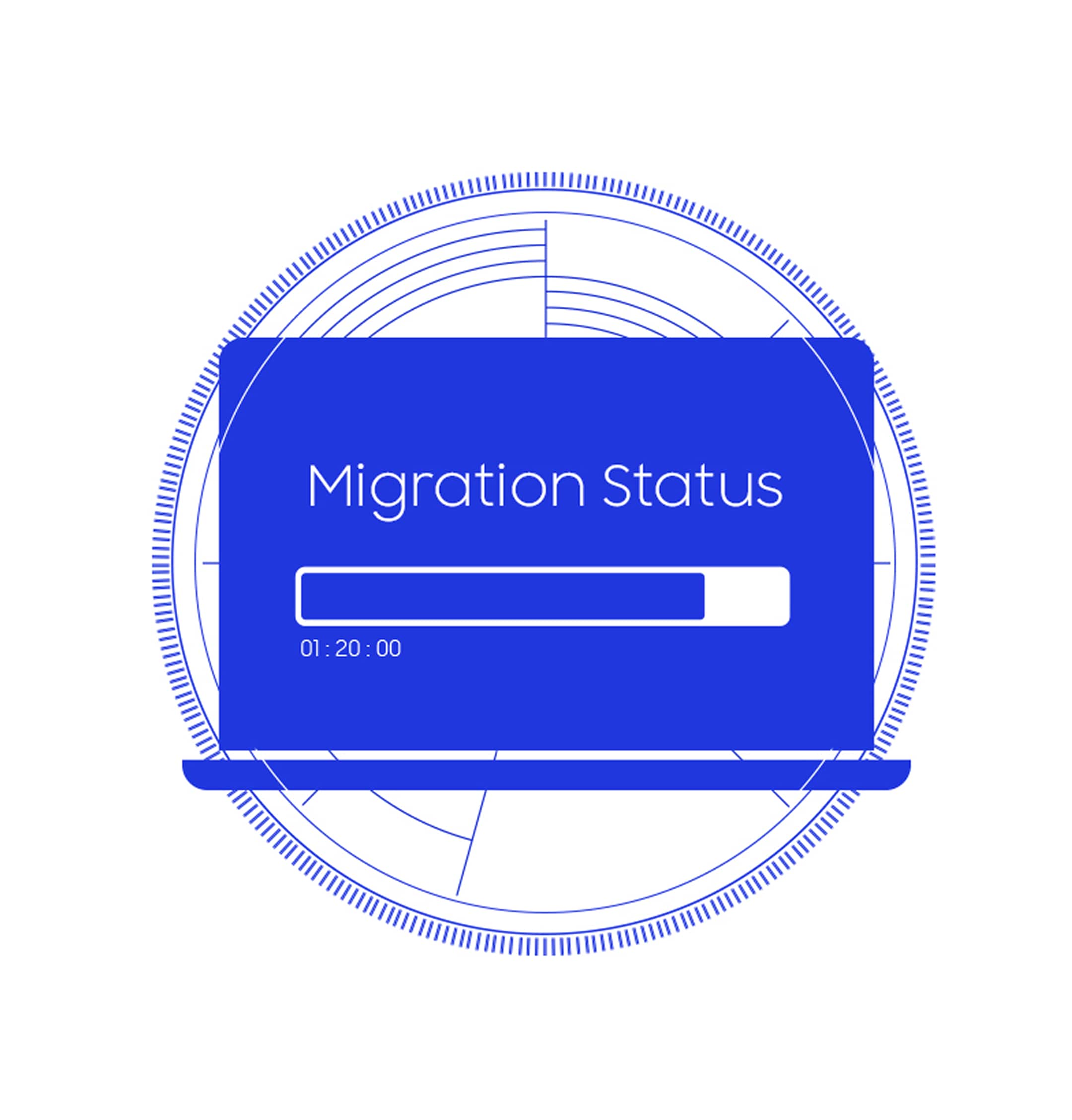
Get up and running fast with Data Migration. Easily and securely transfer your OS, apps and files from your current storage device to your Samsung drive.

A laptop displays the words 'Migration Status' and a half-filled gauge.

One drive,
multiple
workflows

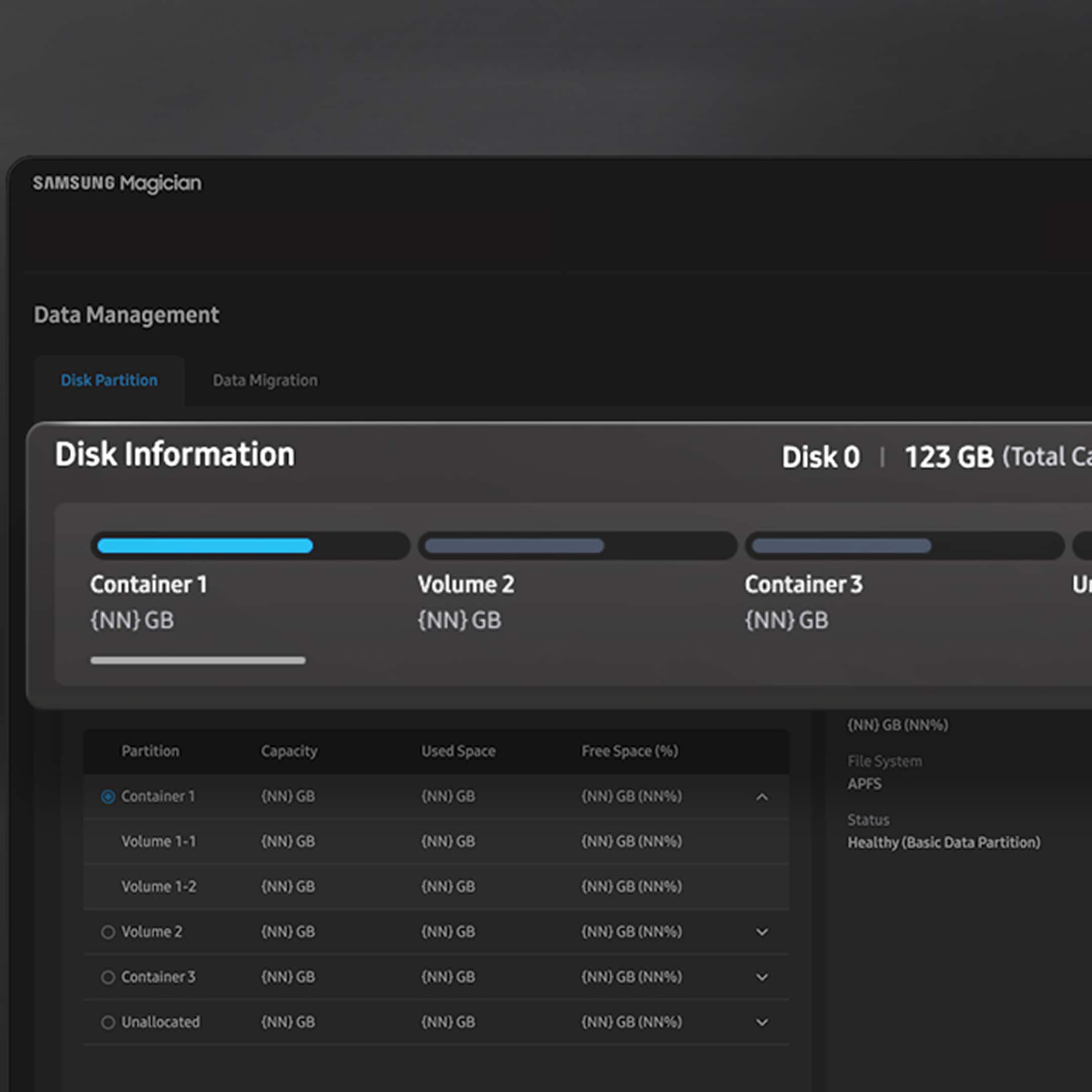
Personalize your setup to match your workflow with a single drive. Segment your SSD into isolated sections for better data separation, streamlined management and enhanced security.

The Magician 9 dashboard displays 'Disk Information' in the Disk Partition tab. The selected drive is separated into three partitions and the capacity of each partition is displayed.

Always get optimal 
performance

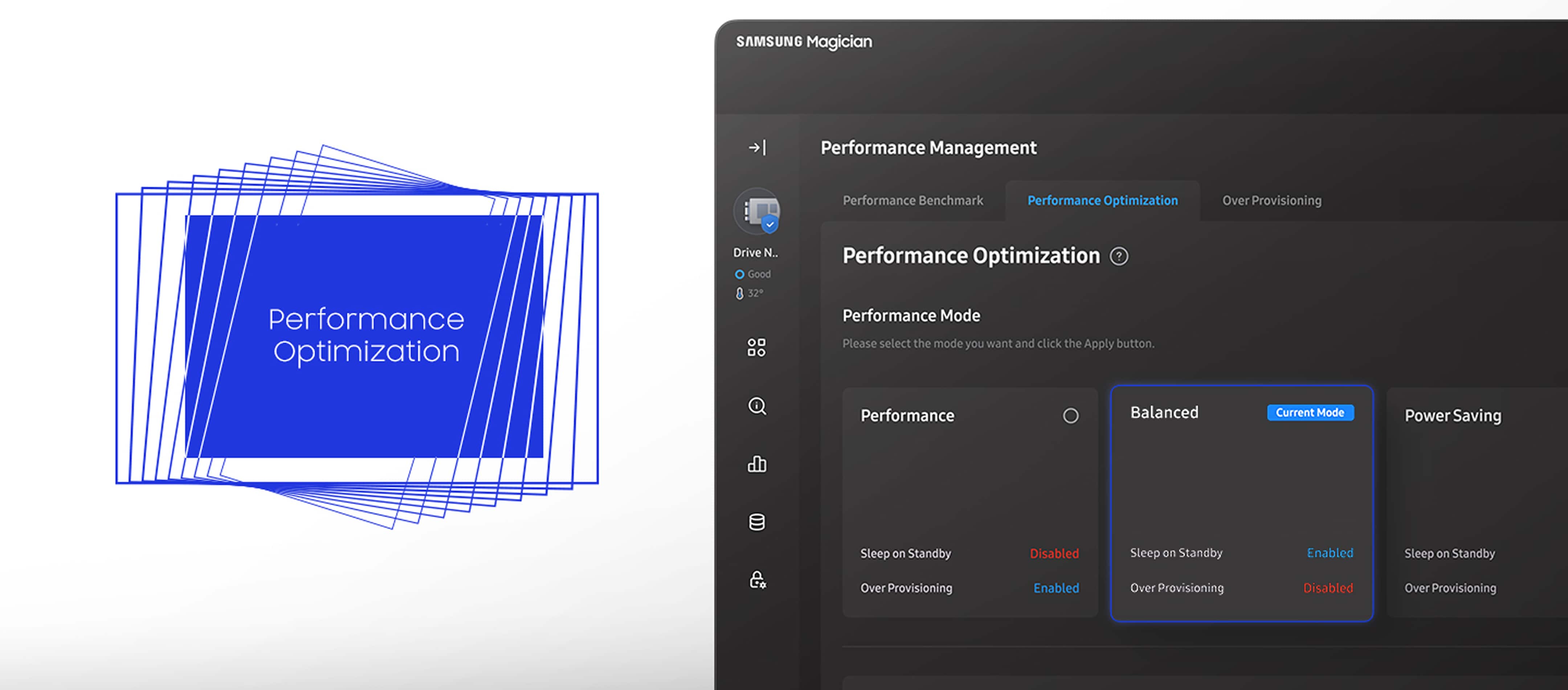
Power through tasks your way with customizable Performance Optimization. Choose between full power or power efficiency modes, and your drive will deliver the smoothest, snappiest experience for your selection.

A laptop screen displays the Performance Optimization widget with 'Balanced' applied as the current mode.
* Available mode options vary depending on the model/type of Samsung SSD. * RAPID (Real-Time Accelerated Processing of I/O Data) Mode fully supported with proper system requirements. For example:
1) Windows® 7 OS and above versions
2) 2GB RAM System memory or more
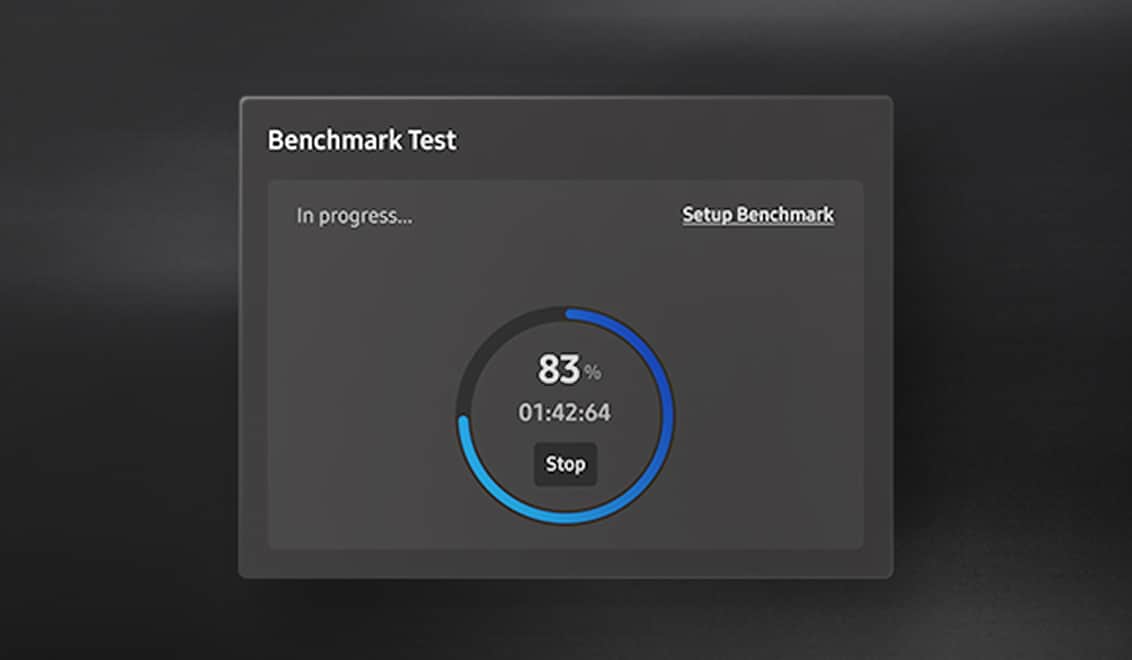
A Benchmark Test is seen in progress and is 83 percent complete.
Performance Benchmark

Measure what matters to you with performance tests. See how well your drive is operating with read and write speeds — and even customize test conditions such as volume, chunk size and more.
Measure what matters to you with performance tests. See how well your drive is operating with read and write speeds — and even customize test conditions such as volume, chunk size and more.

Measure what matters to you with performance tests. See how well your drive is operating with read and write speeds — and even customize test conditions such as volume, chunk size and more.

* It may be necessary to manually refresh the list of drive in System Information before performing benchmarking or performance optimization on a newly attached drive.
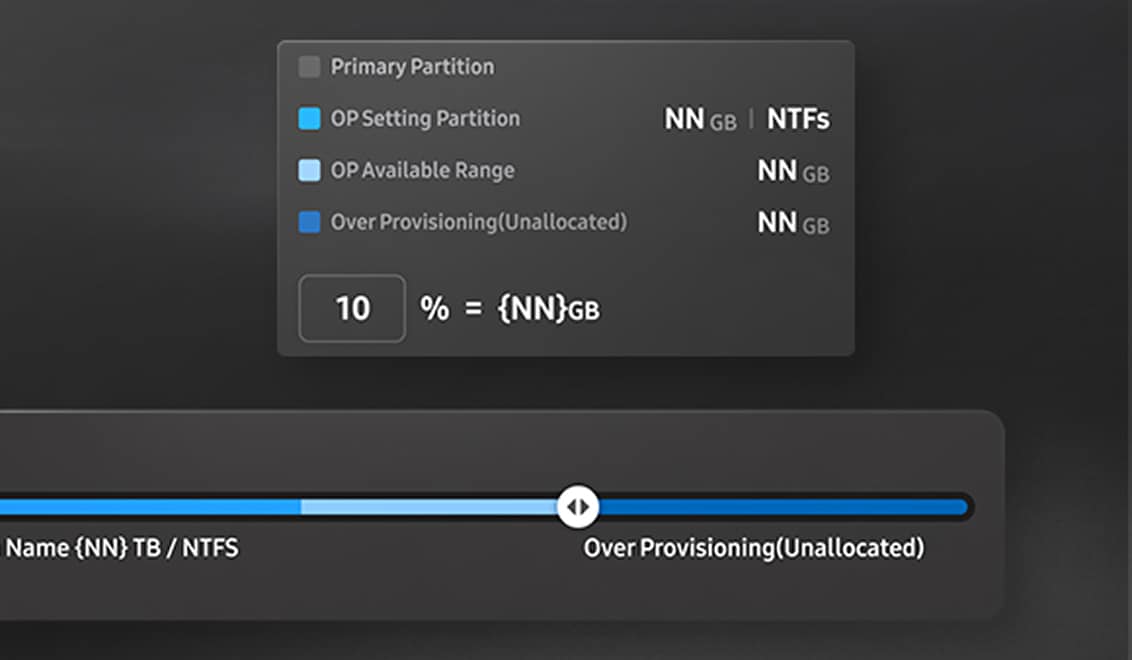
Over Provisioning is seen sorting the drive to allow 10 percent of unallocated space.
Over Provisioning

Free up a little space to reap a load of benefits. With Over Provisioning, you can allocate drive space to deliver faster performance and more effective routine maintenance — all while extending the overall lifespan of your SSD.
Free up a little space to reap a load of benefits. With Over Provisioning, you can allocate drive space to deliver faster performance and more effective routine maintenance — all while extending the overall lifespan of your SSD.

Free up a little space to reap a load of benefits. With Over Provisioning, you can allocate drive space to deliver faster performance and more effective routine maintenance — all while extending the overall lifespan of your SSD.

* Over Provisioning is not supported for Windows® XP.
* If your system suffers from cluster misalignment, Over Provisioning may fail even though enough free space is available.

Data protection you won't think twice about

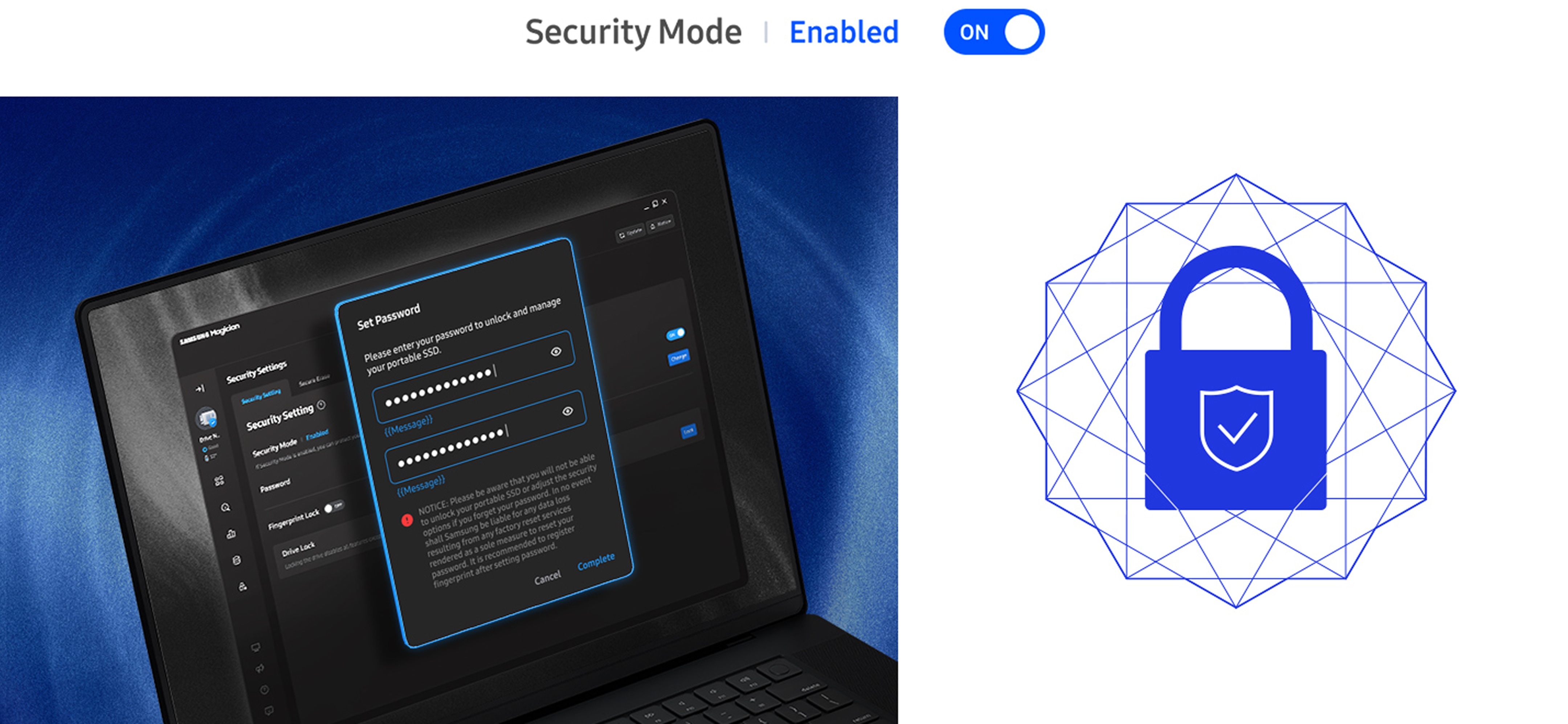
Secure your drive with easy password protection through the settings. Keep full control so only you can access what matters.

On the left, a laptop displays the Magician 9 Security Settings menu and a 'Set Password' pop-up box. On the right, a closed padlock with a security and tick icon in the middle. At the top, the text reads: Security Mode Enabled, ON.
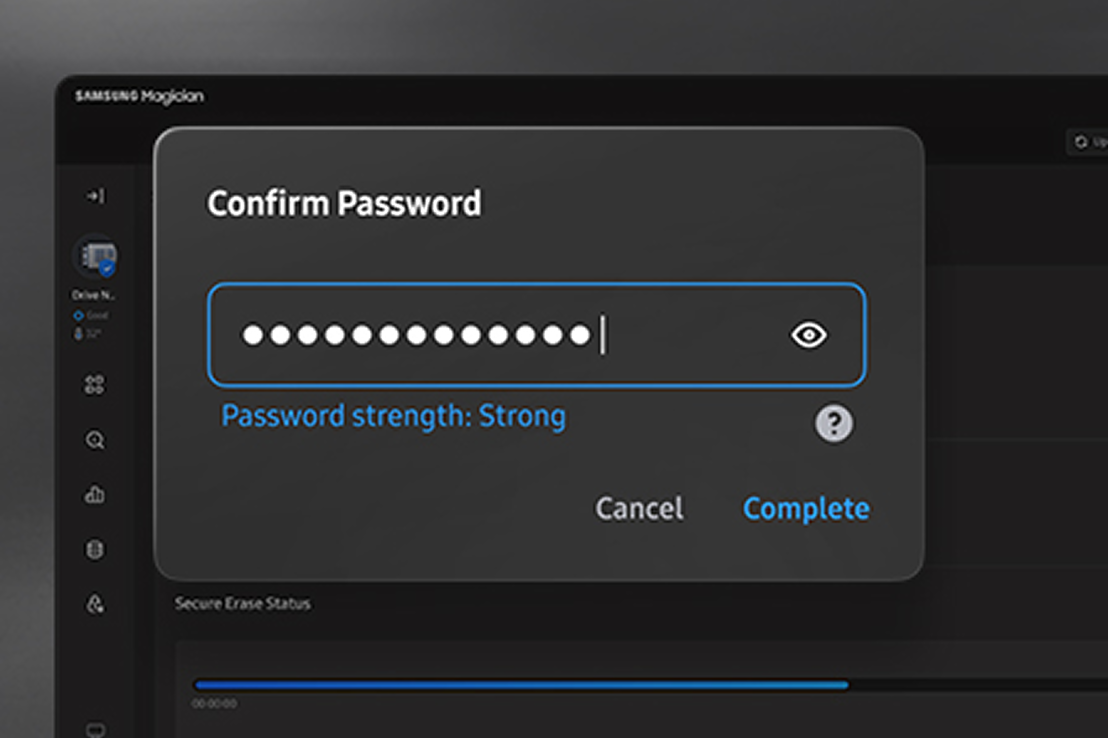
Secure Erase is seen asking the user to input a password in order to erase selected data.
Secure Erase Secure Erase Secure Erase

Delete sensitive information with peace of mind. Secure Erase is a built-in tool for permanently wiping the data you don't want — all in a matter of seconds — without losing what you need or compromising the drive's performance. 
Delete sensitive information with peace of mind. Secure Erase is a built-in tool for permanently wiping the data you don't want — all in a matter of seconds — without losing what you need or compromising the drive's performance. 

Delete sensitive information with peace of mind. Secure Erase is a built-in tool for permanently wiping the data you don't want — all in a matter of seconds — without losing what you need or compromising the drive's performance. 

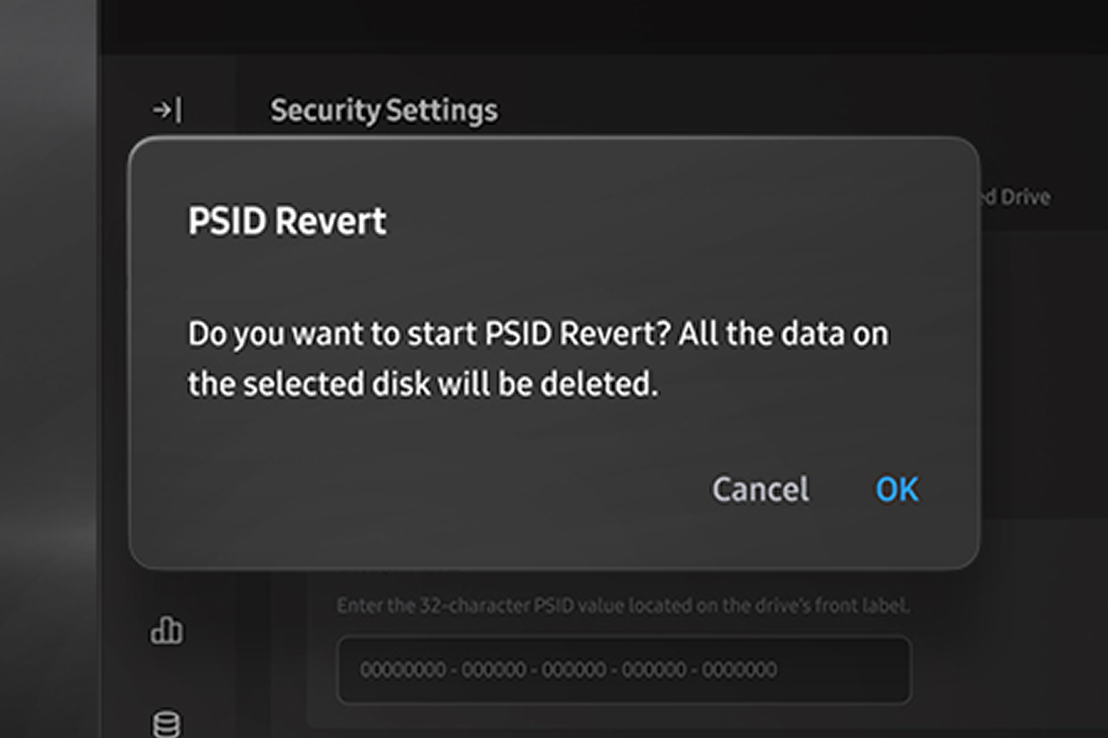
The user has requested to activate PSID Revert, and the system is asking for confirmation.
PSID Revert PSID Revert PSID Revert

Reset your drive quickly and easily. Just enter the PSID password printed on the drive label, and activate PSID Revert to restore to factory settings. It's as simple as that.
Reset your drive quickly and easily. Just enter the PSID password printed on the drive label, and activate PSID Revert to restore to factory settings. It's as simple as that.

Reset your drive quickly and easily. Just enter the PSID password printed on the drive label, and activate PSID Revert to restore to factory settings. It's as simple as that.

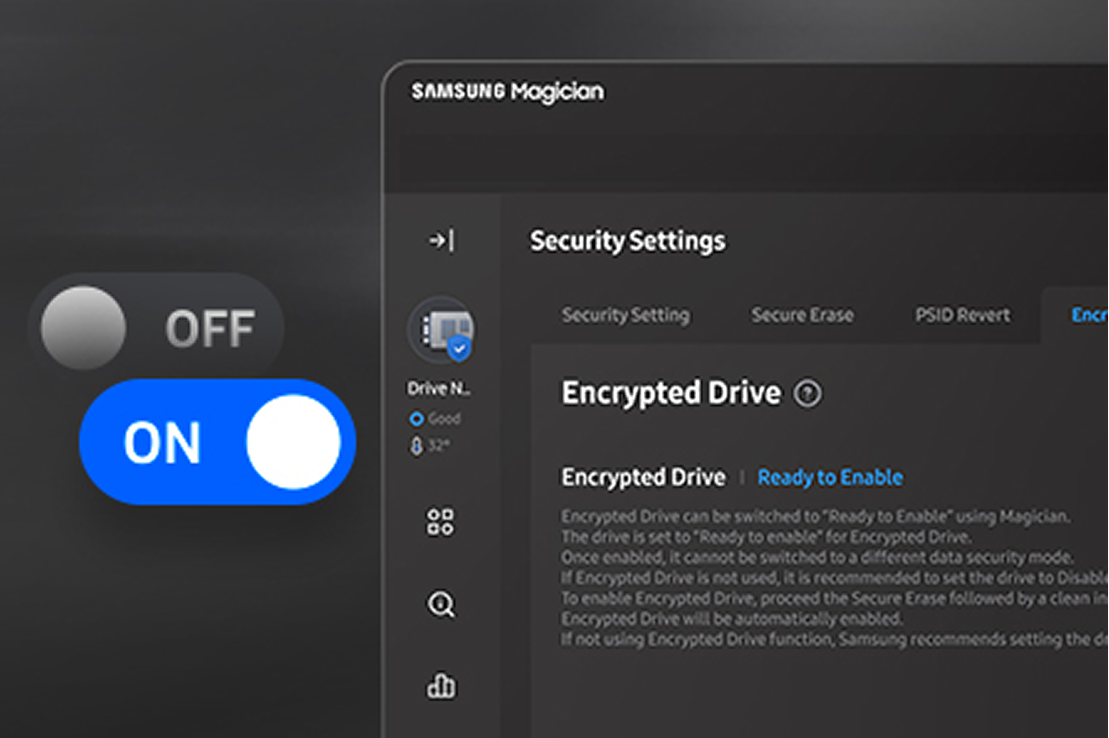
Encrypted Drive is seen in Security Settings and can easily be toggled on and off.
Encrypted Drive Encrypted Drive Encrypted Drive

Keep your data safe at all times by encrypting your drive. It's no hassle — setup is designed to be fast and simple, giving you a secure drive you can take anywhere with confidence.

Keep your data safe at all times by encrypting your drive. It's no hassle — setup is designed to be fast and simple, giving you a secure drive you can take anywhere with confidence.

Keep your data safe at all times by encrypting your drive. It's no hassle — setup is designed to be fast and simple, giving you a secure drive you can take anywhere with confidence.

* Encrypted Drive (BitLocker Drive Encryption) is a data protection feature available in all versions above Windows® 8 Pro, Windows® 8 Enterprise, and all editions of Windows® Server 2012.

Supported Models

Magician software supports the following Samsung memory storage products.
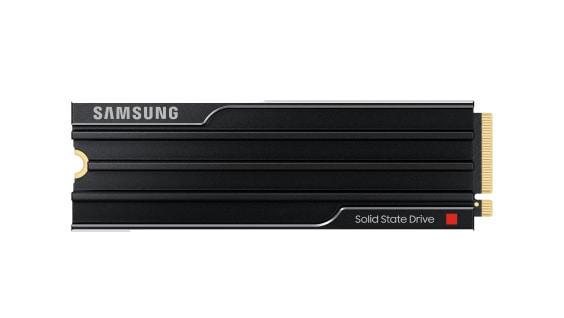
  • Samsung SSD 9100 PRO with Heatsink
    9100 PRO with Heatsink

    MZ-VAP1T0CW (1TB)
    MZ-VAP2T0CW (2TB)
    MZ-VAP4T0CW (4TB)
    MZ-VAP8T0CW (8TB)
    Learn more
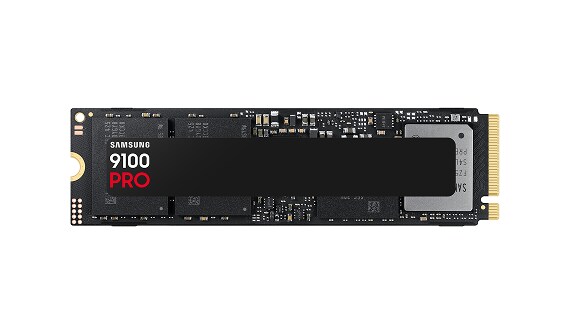
  • Samsung SSD 9100 PRO
    9100 PRO

    MZ-VAP1T0BW (1TB)
    MZ-VAP2T0BW (2TB)
    MZ-VAP4T0BW (4TB)
    MZ-VAP8T0BW (8TB)
    Learn more
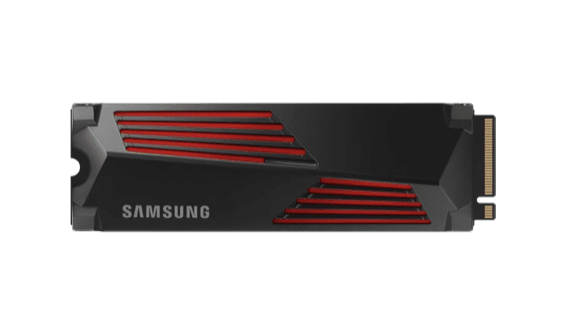
  • Samsung SSD 990 PRO with Heatsink
    990 PRO with Heatsink

    MZ-V9P1T0CW(1TB)
    MZ-V9P1T0GW(1TB)
    MZ-V9P2T0CW(2TB)
    MZ-V9P2T0GW(2TB)
    MZ-V9P4T0CW(4TB)
    MZ-V9P4T0GW(4TB)
    Learn more
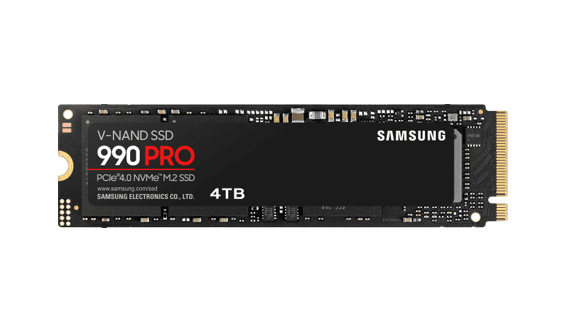
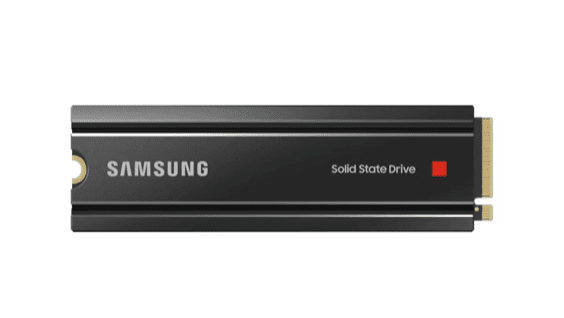
  • Samsung SSD 990 PRO
    990 PRO

    MZ-V9P1T0BW (1TB)
    MZ-V9P2T0BW (2TB)
    MZ-V9P4T0BW (4TB)
    Learn more
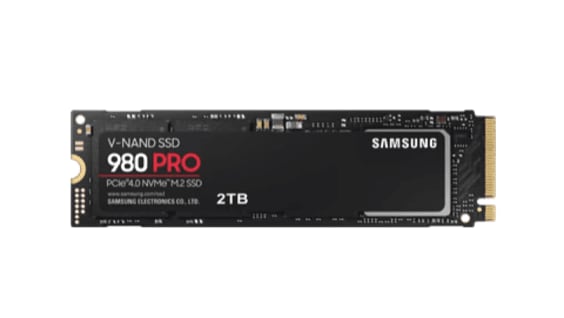
  • Samsung SSD 980 PRO with Heatsink
    980 PRO with Heatsink

    MZ-V8P1T0CW (1TB)
    MZ-V8P2T0CW (2TB)

    Learn more
  • Samsung SSD 980 PRO
    980 PRO

    MZ-V8P250BW (250GB)
    MZ-V8P500BW (500GB)
    MZ-V8P1T0BW (1TB)
    MZ-V8P2T0BW (2TB)
    Learn more
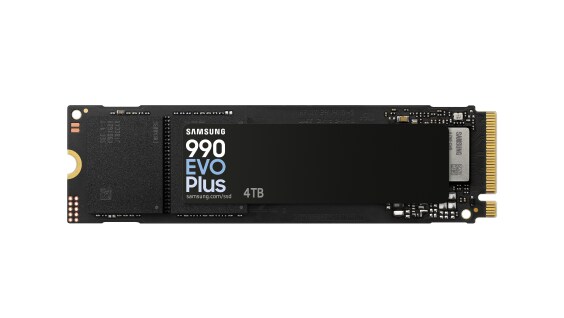
  • Samsung SSD 990 EVO Plus
    990 EVO Plus

    MZ-V9S1T0BW(1TB)
    MZ-V9S2T0BW(2TB)
    MZ-V9S4T0BW(4TB)
    Learn more
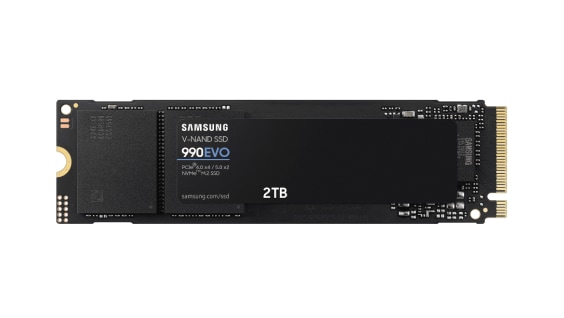
  • Samsung SSD 990 EVO
    990 EVO

    MZ-V9E1T0BW (1TB)
    MZ-V9E2T0BW (2TB)

    Learn more
  • Samsung SSD 970 EVO Plus
    970 EVO Plus

    MZ-V7S250BW (250GB)
    MZ-V7S500BW (500GB)
    MZ-V7S1T0BW (1TB)
    MZ-V7S2T0BW (2TB)
    Learn more
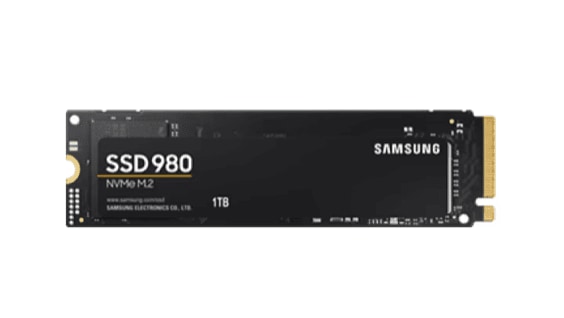
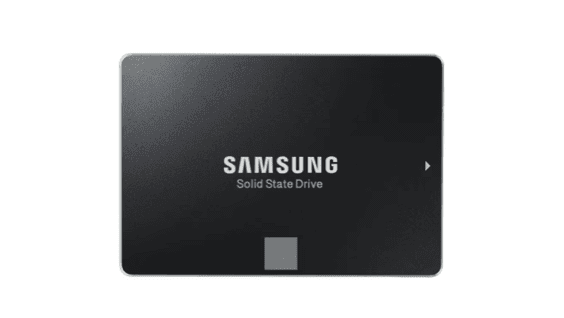
  • Samsung SSD 980
    980

    MZ-V8V250BW (250GB)
    MZ-V8V500BW (500GB)
    MZ-V8V1T0BW (1TB)
    Learn more
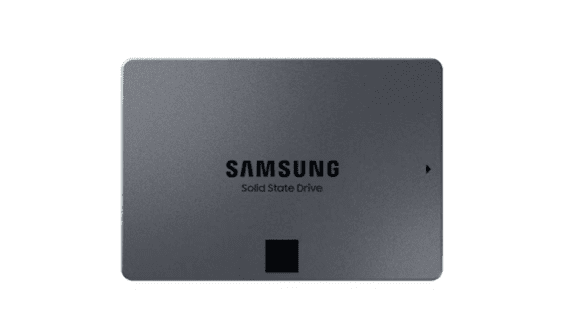
  • Samsung SSD 870 EVO
    870 EVO

    MZ-77E250 (250GB)
    MZ-77E500 (500GB)
    MZ-77E1T0 (1TB)
    MZ-77E2T0 (2TB)
    MZ-77E4T0 (4TB)
    Learn more
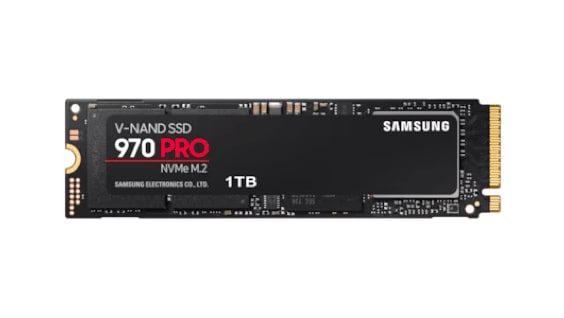
  • Samsung SSD 870 QVO
    870 QVO

    MZ 77Q1T0 (1TB)
    MZ 77Q2T0 (2TB)
    MZ 77Q4T0 (4TB)
    MZ 77Q8T0 (8TB)
    Learn more
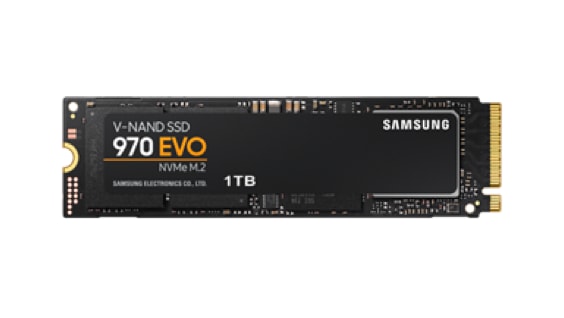
  • Samsung SSD 970 PRO
    970 PRO

    MZ-V7P512BW (512GB)
    MZ-V7P1T0BW (1TB)
    Learn more
  • Samsung SSD 970 EVO
    970 EVO

    MZ-V7E250BW (250GB)
    MZ-V7E500BW (500GB)
    MZ-V7E1T0BW (1TB)
    MZ-V7E2T0BW (2TB)
    Learn more
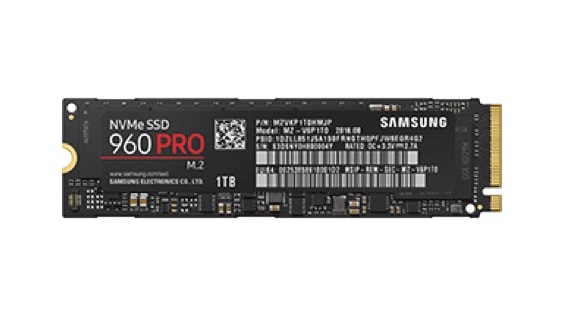
  • Samsung SSD 960 PRO
    960 PRO

    MZ-V6P512BW (512GB)
    MZ-V6P1T0BW (1TB)
    MZ-V6P2T0BW (2TB)
    Learn more
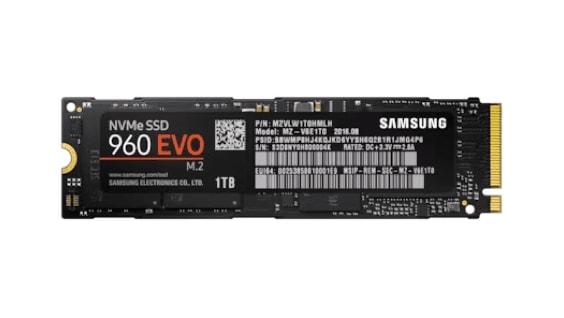
  • Samsung SSD 960 EVO
    960 EVO

    MZ-V6E250BW (250GB)
    MZ-V6E500BW (500GB)
    MZ-V6E1T0BW (1TB)
    Learn more
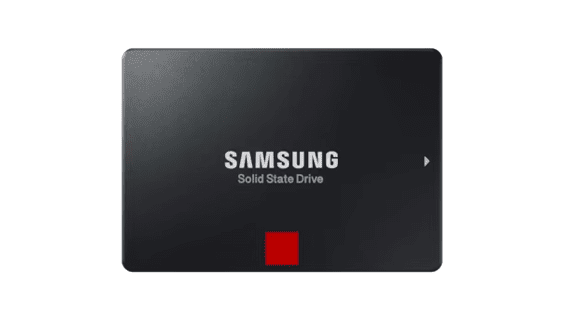
  • Samsung SSD 860 PRO
    860 PRO

    MZ-76P256BW (256GB)
    MZ-76P512BW (512GB)
    MZ-76P1T0BW (1TB)
    MZ-76P2T0BW (2TB)
    MZ-76P4T0BW (4TB)
    Learn more
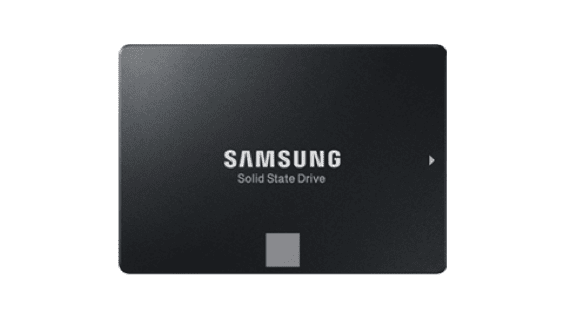
  • Samsung SSD 860 EVO
    860 EVO

    MZ-76E250BW (250GB)
    MZ-76E500BW (500GB)
    MZ-76E1T0BW (1TB)
    MZ-76E2T0BW (2TB)
    MZ-76E4T0BW (4TB)
    MZ-M6E250BW (250GB)
    MZ-M6E500BW (500GB)
    MZ-M6E1T0BW (1TB)
    MZ-N6E250BW (250GB)
    MZ-N6E500BW (500GB)
    MZ-N6E1T0BW (1TB)
    MZ-N6E2T0BW (2TB)
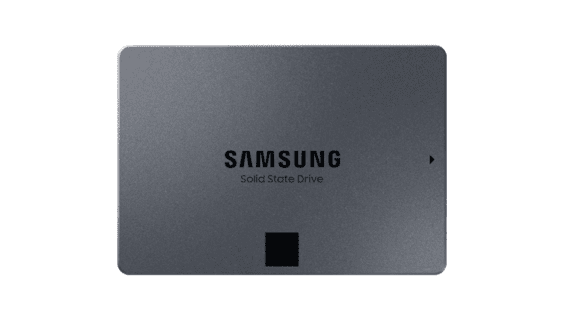
    Learn more
  • Samsung SSD 860 QVO
    860 QVO

    MZ-76Q1T0BW (1TB)
    MZ-76Q2T0BW (2TB)
    MZ-76Q4T0BW (4TB)
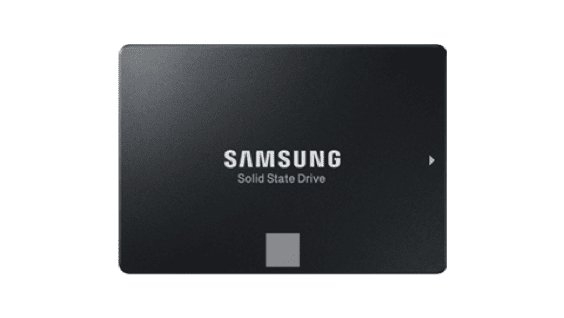
  • Samsung SSD 850 EVO
    850 EVO

    MZ-75E250 (250GB)
    MZ-75E500 (500GB)
    MZ-75E1T0 (1TB)
    MZ-75E2T0 (2TB)
    MZ-75E4T0 (4TB)
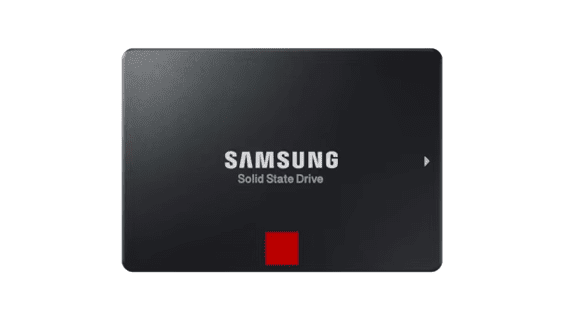
    Learn more
  • Samsung SSD 850 PRO
    850 PRO

    MZ-7KE256 (256GB)
    MZ-7KE512 (512GB)
    MZ-7KE1T0 (1TB)
    MZ-7KE2T0 (2TB)
    MZ-7KE4T0 (4TB)
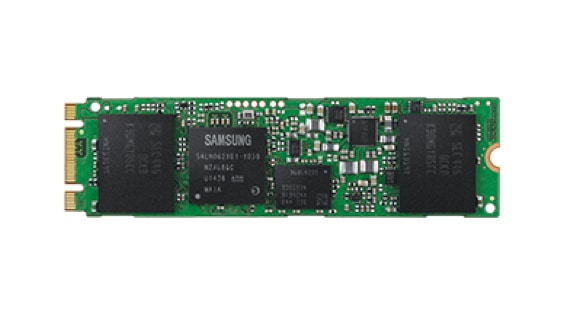
    Learn more
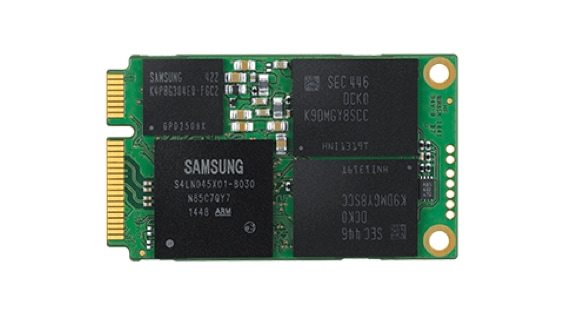
  • Samsung SSD 850 EVO M.2
    850 EVO M.2

    MZ-N5E120 (120GB)
    MZ-N5E250 (250GB)
    MZ-N5E500 (500GB)
    Learn more
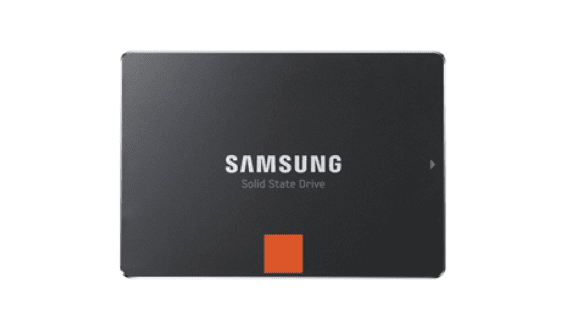
  • Samsung SSD 850 EVO mSATA
    850 EVO mSATA

    MZ-M5E120 (120GB)
    MZ-M5E250 (250GB)
    MZ-M5E500 (500GB)
    MZ-M5E1T0 (1TB)
    Learn more
  • Samsung SSD 840 PRO
    840 PRO

    MZ-7PD128 (128GB)
    MZ-7PD256 (256GB)
    MZ-7PD512 (512GB)
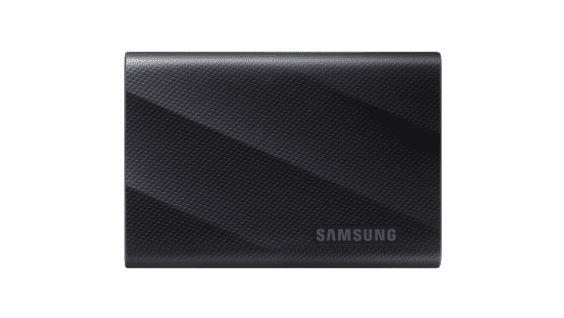
  • Samsung Portable SSD T9
    T9

    MU-PG1T0B (1TB)
    MU-PG2T0B (2TB)
    MU-PG4T0B (4TB)
    Learn more
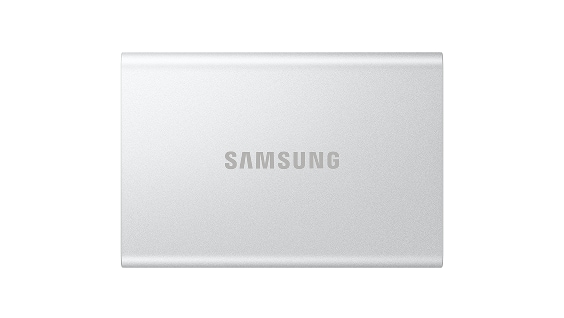
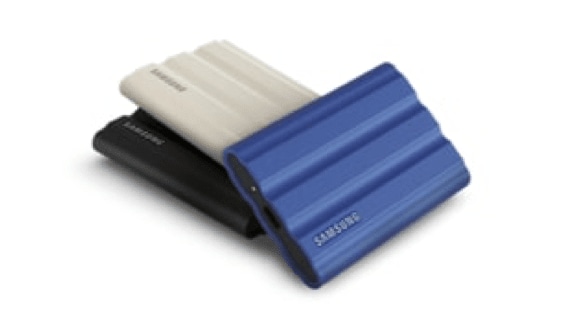
  • Samsung Portable T7 Resurrected
    T7 Resurrected

    MU-PG1T0 (1TB)
    MU-PG2T0 (2TB)
    MU-PG4T0 (4TB)
    Learn more
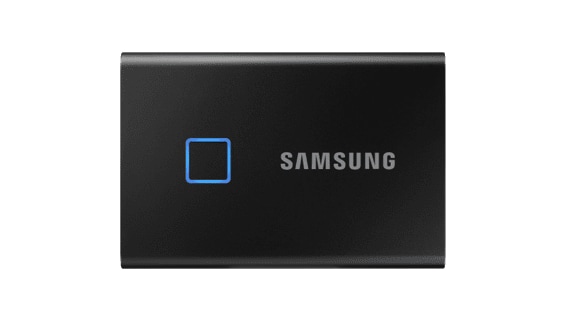
  • Samsung Portable SSD T7 Shield
    T7 Shield

    MU-PE1T0K (1TB)
    MU-PE1T0R (1TB)
    MU-PE1T0S (1TB)
    MU-PE2T0K (2TB)
    MU-PE2T0R (2TB)
    MU-PE2T0S (2TB)
    MU-PE4T0K (4TB)
    MU-PE4T0R (4TB)
    MU-PE4T0S (4TB)
    Learn more
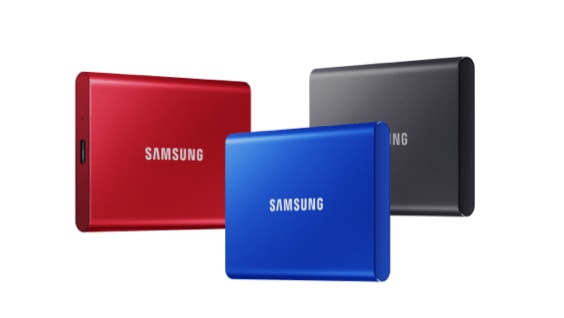
  • Samsung Portable SSD T7 Touch
    T7 Touch

    MU-PC500K (500GB)
    MU-PC500S (500GB)
    MU-PC1T0K (1TB)
    MU-PC1T0S (1TB)
    MU-PC2T0K (2TB)
    MU-PC2T0S (2TB)
    Learn more
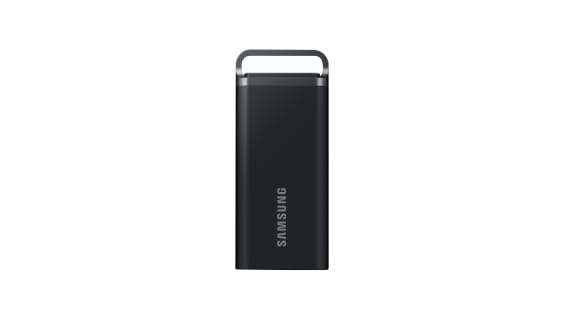
  • Samsung Portable SSD T7
    T7

    MU-PC500R (500GB)
    MU-PC500H (500GB)
    MU-PC500T (500GB)
    MU-PC1T0R (1TB)
    MU-PC1T0H (1TB)
    MU-PC1T0T (1TB)
    MU-PC2T0R (2TB)
    MU-PC2T0H (2TB)
    MU-PC2T0T (2TB)
    Learn more
  • Samsung Portable SSD T5 EVO
    T5 EVO

    MU-PH2T0S (2TB)
    MU-PH4T0S (4TB)
    MU-PH8T0S (8TB)
    Learn more
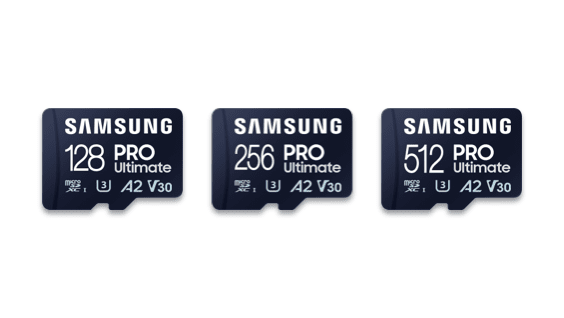
  • Samsung Memory Card microSD Card PRO Ultimate
    microSD Card
    PRO Ultimate

    MB-MY128S (128GB)
    MB-MY256S (256GB)
    MB-MY512S (512GB)
    Learn more
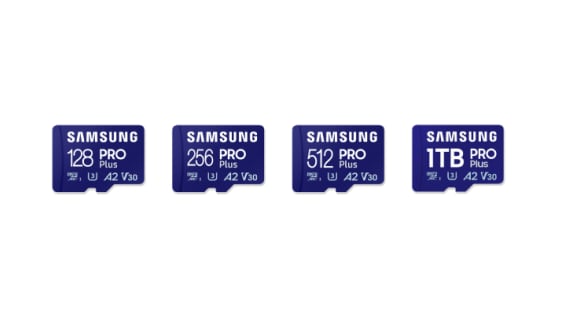
  • Samsung Memory Card microSD Card PRO Plus
    microSD Card
    PRO Plus

    MB-MD128S (128GB)
    MB-MD256S (256GB)
    MB-MD512S (512GB)
    MB-MD1T0S (1TB)
    MB-MD128K (128GB)
    MB-MD256K (256GB)
    MB-MD512K (512GB)
    Learn more
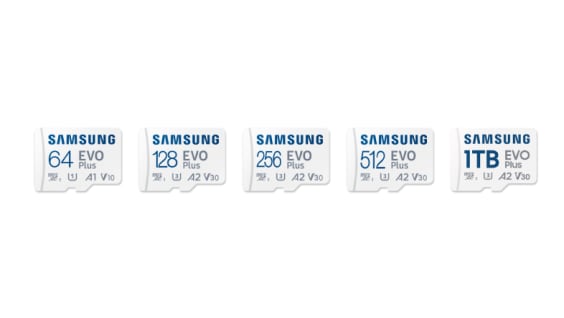
  • Samsung Memory Card microSD Card EVO Plus
    microSD Card
    EVO Plus

    MB-MC64S (64GB)
     MB-MC128S (128GB)
     MB-MC256S (256GB)
     MB-MC512S (512GB)
    MB-MC1T0S (1TB)
    MB-MC64K (64GB)
    MB-MC128K (128GB)
    MB-MC256K (256GB)
    MB-MC512K (512GB)
    Learn more
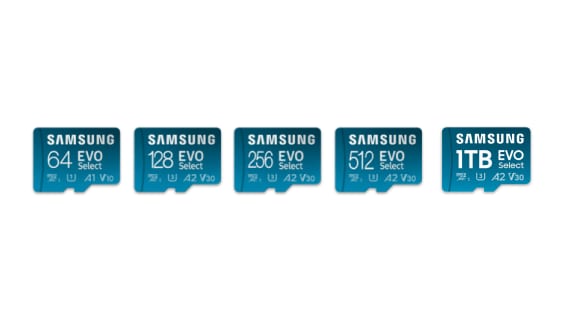
  • Samsung Semiconductor's microSD Card EVO Select is available in capacities of 64GB, 128GB, 256GB, 512GB and 1TB.
    microSD Card
    EVO Select

    MB-ME64S (64GB)
     MB-ME128S (128GB)
     MB-ME256S (256GB)
     MB-ME512S (512GB)
    MB-ME1T0S (1TB)
    MB-ME64K (64GB)
    MB-ME128K (128GB)
    MB-ME256K (256GB)
    MB-ME512K (512GB)
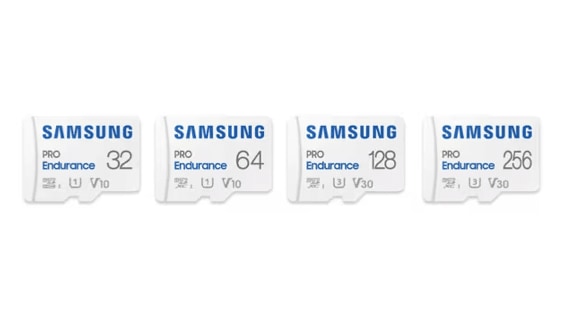
  • Samsung Memory Card microSD Card PRO Endurance
    microSD Card
    PRO Endurance

    MB-MJ32K (32GB)
    MB-MJ64K (64GB)
    MB-MJ128K (128GB)
    MB-MJ256K (256GB)
    MB-MJ32G (32GB)
    MB-MJ64G (64GB)
    MB-MJ128G (128GB)
    Learn more
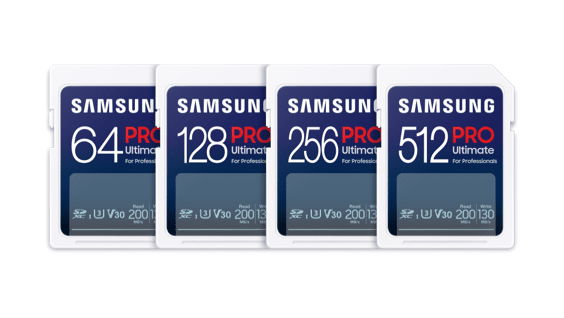
  • Samsung Memory Card SD Card PRO Ultimate
    SD Card
    PRO Ultimate

    MB-SY64S (64GB)
    MB-SY128S (128GB)
    MB-SY256S (256GB)
    MB-SY512S (512GB)
    Learn more
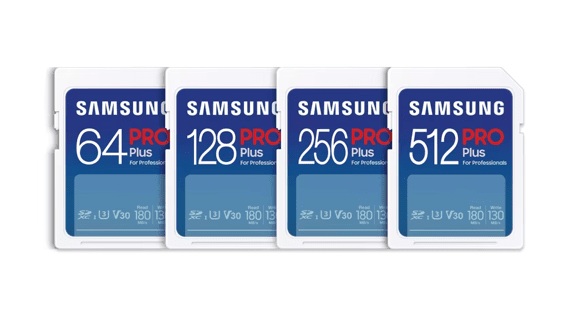
  • Samsung Memory Card SD Card PRO Plus
    SD Card
    PRO Plus

    MB-SD64S (64GB)
    MB-SD128S (128GB)
    MB-SD256S (256GB)
    MB-SD512S (512GB)
    MB-SD32K (32GB)
    MB-SD64K (64GB)
    MB-SD128K (128GB)
    MB-SD256K (256GB)
    MB-SD512K (512GB)
    Learn more
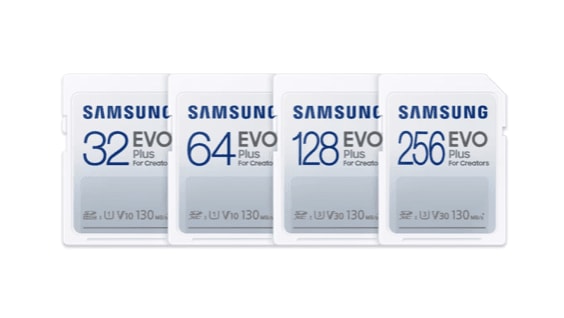
  • Samsung Memory Card SD Card EVO Plus
    SD Card
    EVO Plus

    MB-SC32K (32GB)
    MB-SC64K (64GB)
    MB-SC128K (128GB)
    MB-SC256K (256GB)
    Learn more
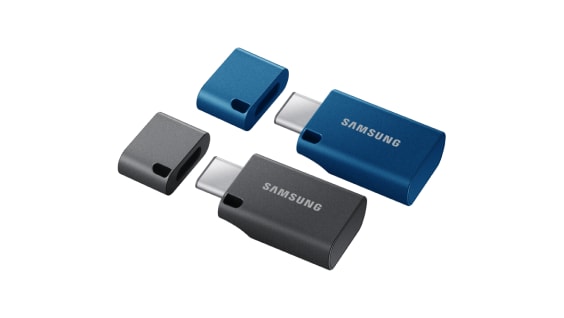
  • Samsung USB Flash Drive Type-C™
    Type-C™

    MUF-64DA (64GB)
    MUF-128DA (128GB)
    MUF-256DA (256GB)
    MUF-512DA (512GB)
    Learn more
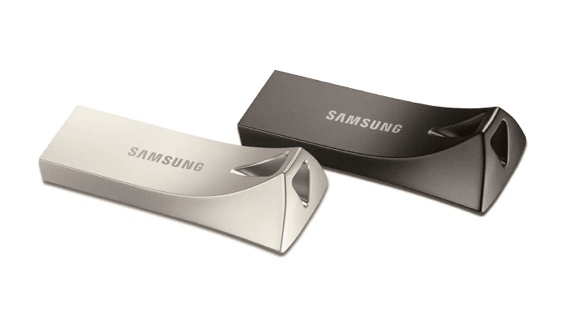
  • Samsung USB Flash Drive BAR Plus
    BAR Plus

    MUF-32BE (32GB)
    MUF-64BE (64GB)
    MUF-128BE (128GB)
    MUF-256BE (256GB)
    MUF-512BE (512GB)
    Learn more
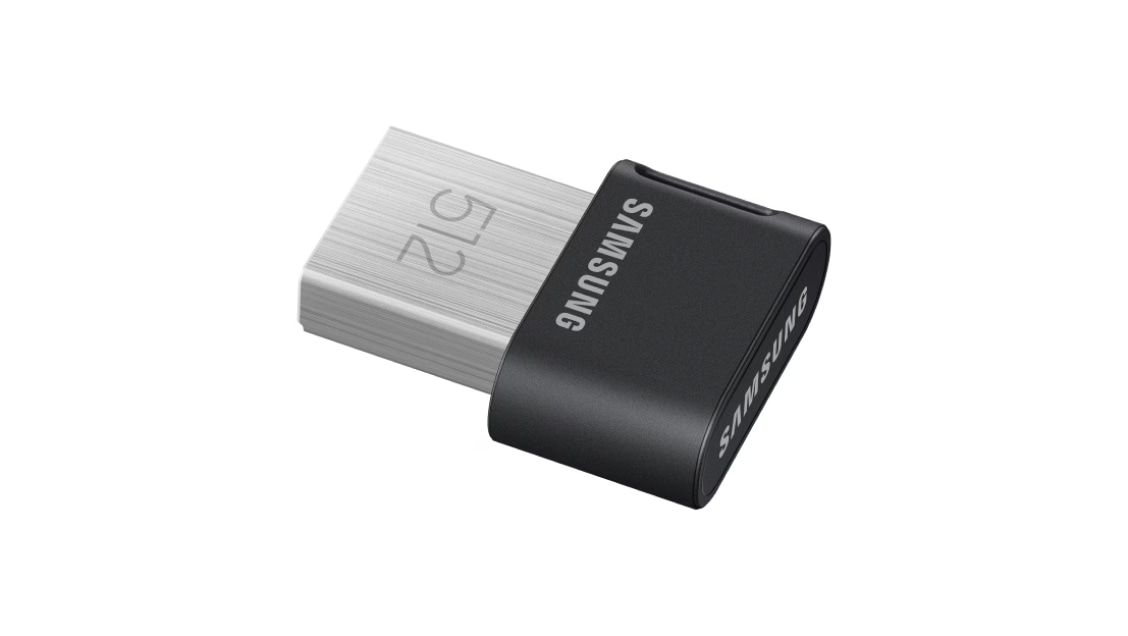
  • Samsung USB Flash Drive FIT Plus
    FIT Plus

    MUF-32AB (32GB)
    MUF-64AB (64GB)
    MUF-128AB (128GB)
    MUF-256AB (256GB)
    MUF-512AB (512GB)
    Learn more

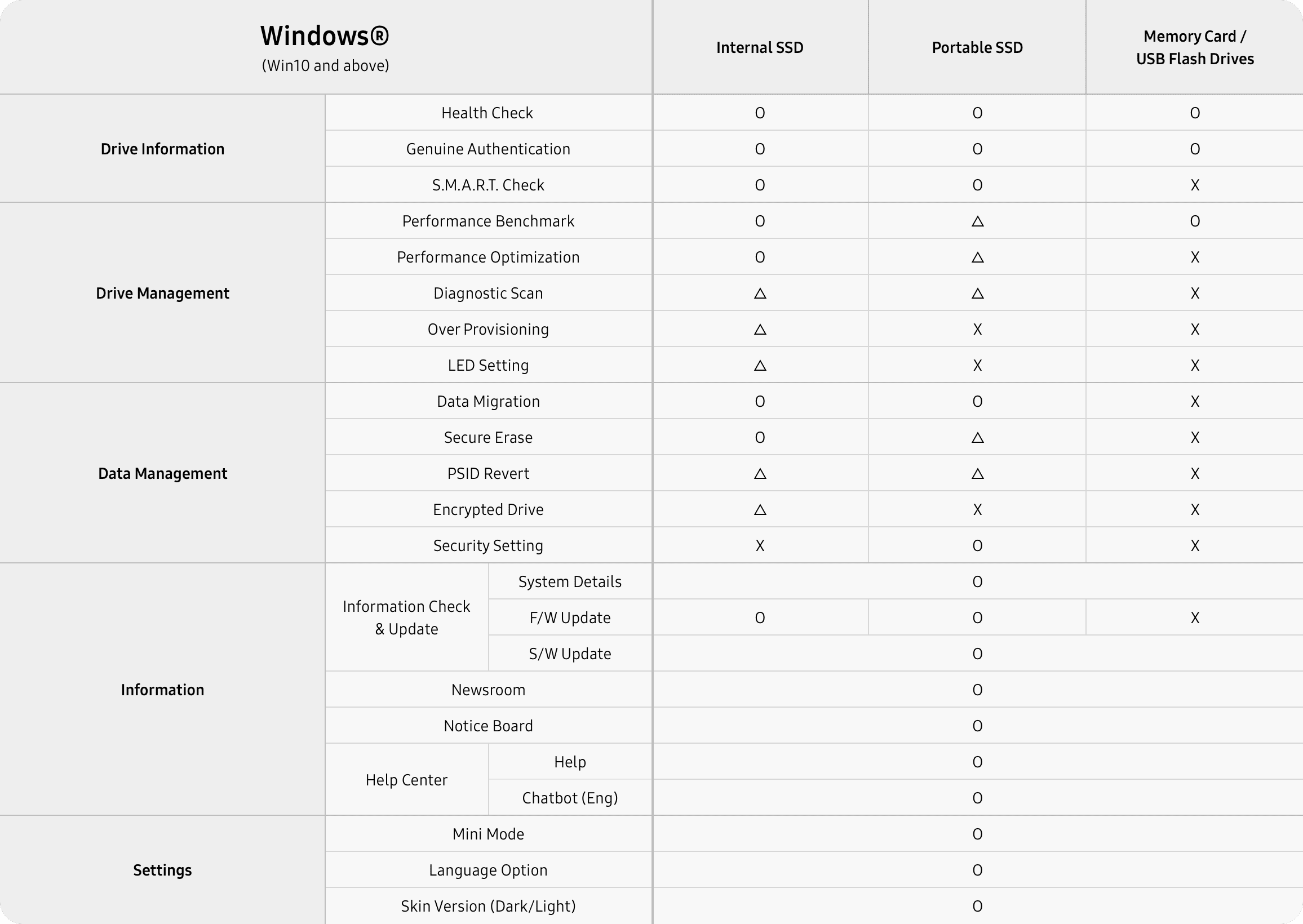
Supported Features by Operation System

Comparison table of Windows operating system compatibility features for Samsung brand memory products (internal SSDs, portable SSDs, memory cards, USB flash drives) compatible with Samsung Magician.
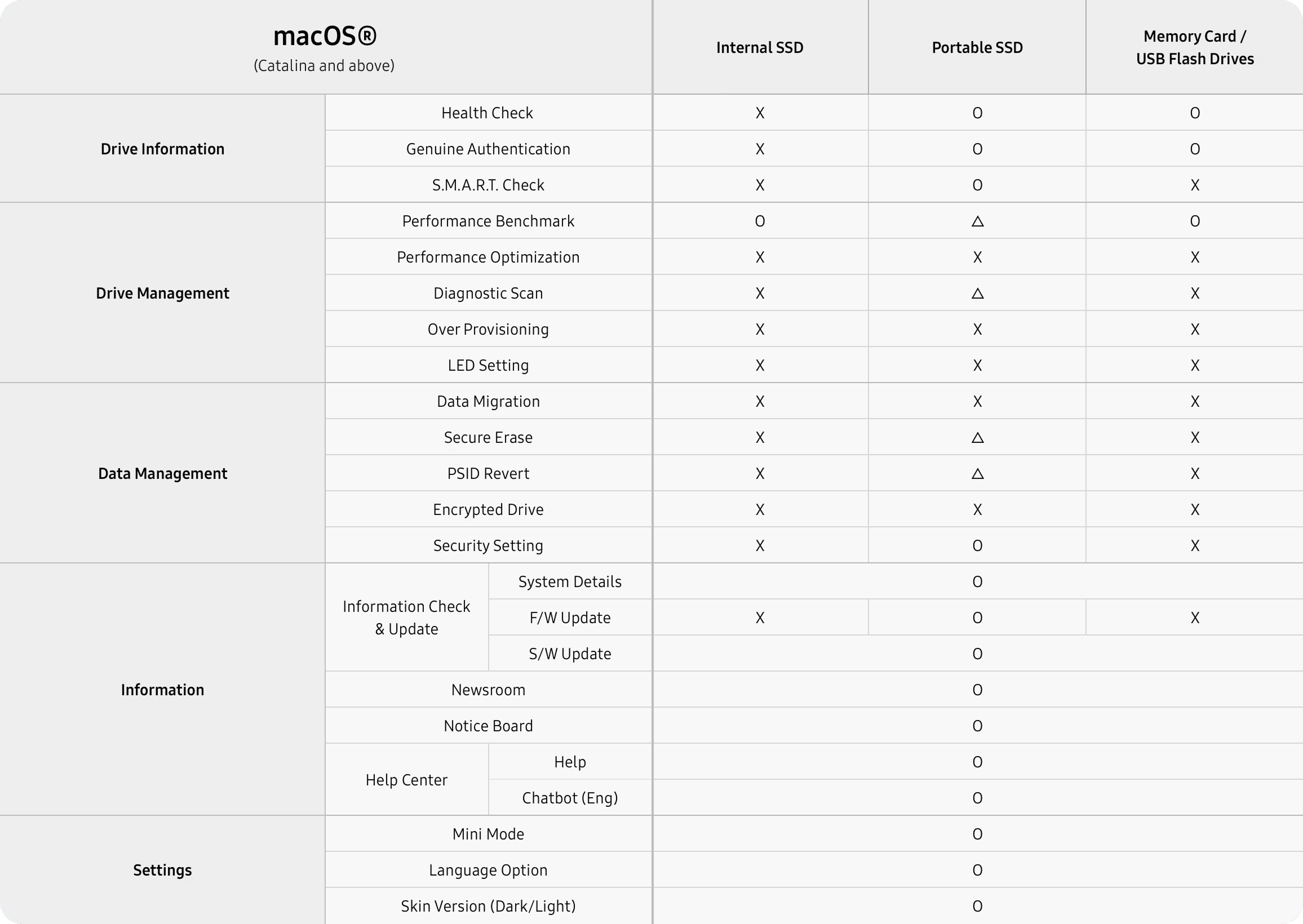
Comparison table of macOS operating system compatibility features for Samsung brand memory products (internal SSDs, portable SSDs, memory cards, USB flash drives) compatible with Samsung Magician.
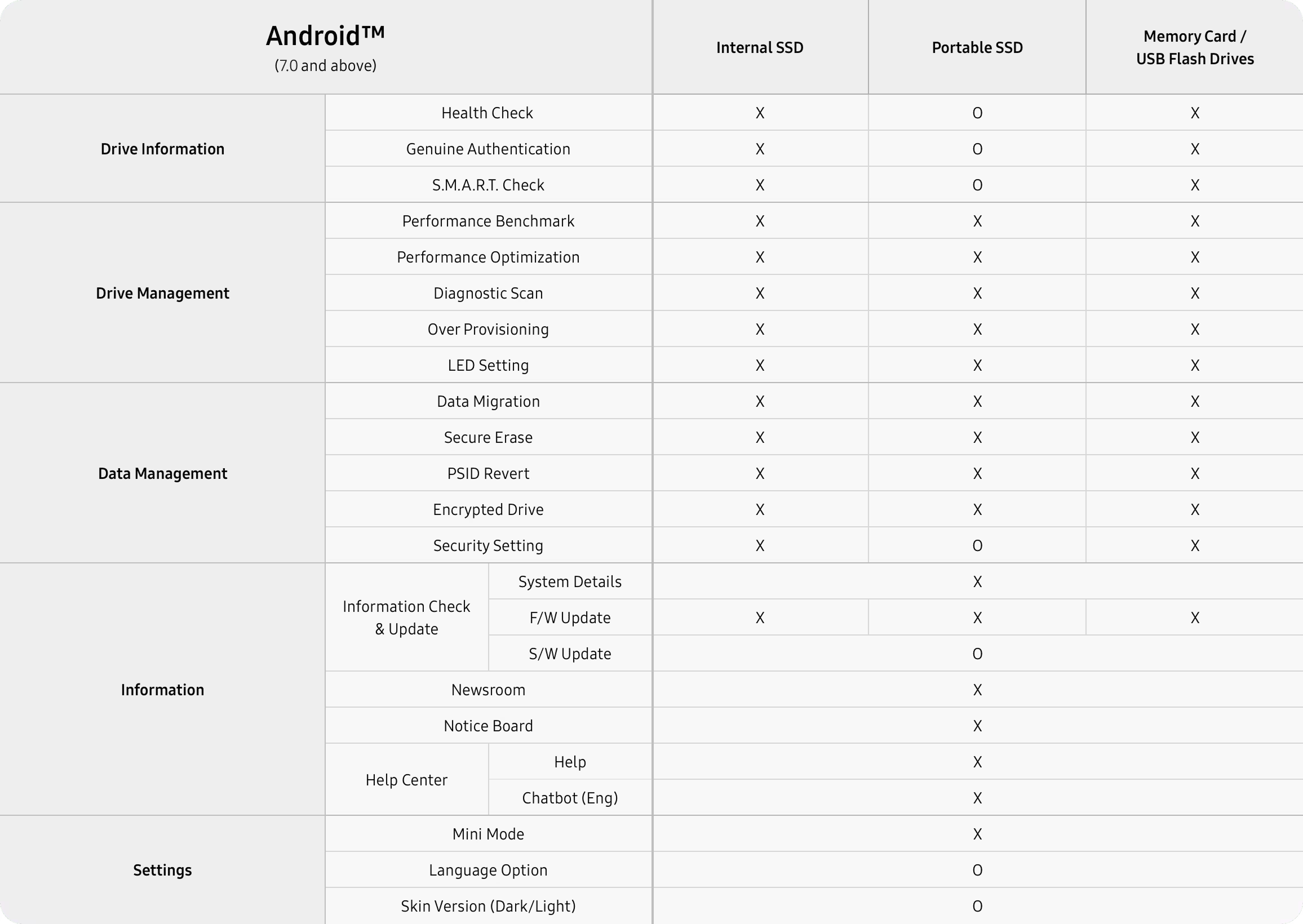
Comparison table of Android operating system compatibility features for Samsung brand memory products (internal SSDs, portable SSDs, memory cards, USB flash drives) compatible with Samsung Magician.
* Feature availability may differ across language
versions of the software.
  • O : All models supported
  • △ : Some models supported
  • X : Not supported

FAQs

  • Samsung Magician is designed to help users easily manage their Samsung memory products, including internal SSDs, portable SSDs, memory cards, and USB flash drives, conveniently update firmware and optimize their drive for performance and reliability.

    Samsung Magician software is developed and distributed exclusively for owners of Samsung memory products.

    In addition, Samsung Magician offers different features depending on the Samsung memory model(s) in use, such as System Compatibility, Performance Benchmark, Performance Optimization, Over Provisioning, Secure Erase, and Data Security. These features help users to maximize the performance and lifespan of their drives.

    * Supported features vary for non-Samsung SSDs and Samsung OEM SSDs pre-installed in customer systems.

    For more information on Magician, such as system requirements and driver support, please refer to the Magician Software Installation Guide at https://semiconductor.samsung.com/consumer-storage/support/tools/.

  • Samsung Magician 9.0 is compatible with the following operating systems: Windows 10 (32-bit/64-bit), macOS High Sierra 10.13, and Android 5.1 and above. For Windows 8.1 and lower, please use Magician 7.3. The Linux operating system is not supported.

    *Internal SSDs are not supported on macOS or Andriod.

  • Samsung Magician fully supports Samsung branded memory products, including internal SSDs, portable SSDs, memory cards, and USB flash drives. Supported features may vary for Samsung OEM SSDs and non-Samsung SSDs. For more details on supported features, please refer to the Magician Software Installation Guide at https://semiconductor.samsung.com/consumer-storage/support/tools/.
  • Samsung Magician software supports the following 10 languages.

    English / Korean / Spanish / German / French / Italian / Russian / Portuguese / Chinese / Japanese

  • 1. Please uninstall the previous version of Samsung Magician software.

    'Uninstall Samsung Magician', or go to Control Panel - Programs and Features - Uninstall or change a program, and select Uninstall.

    2. Delete the folder where the previous version of Magician was installed.

    default path : C:\Program Files(x86)\Samsung\Samsung Magician(64bit) or C:\Program Files\Samsung\Samsung Magician(32bit)

    3. Delete the registry of the previous version of Magician software.

    Run - Enter regedit - Computer - HKEY_LOCAL_MACHINE\SOFTWARE\Samsung Magician, for 64bit HKEY_LOCAL_MACHINE\SOFTWARE\WOW6432Node\Samsung Magician

    4. Reinstall the Magician software.

  • No, Samsung Magician does not require an internet connection to run. However, an internet connection is recommended to receive updates for the latest firmware, features and Samsung Magician application.
  • 1. Magician is designed specifically for Samsung branded memory products, including SSDs, memory cards, and USB flash drives. Features such as Firmware Update, Drive Health Status, Secure Erase, and Total Bytes Written are not supported for non-Samsung SSDs.

    2. Magician does not work with SSDs connected via the SCSI controller interface.

    3. Only MBR and GPT partition types are supported. Magician may not work with other partition types.

    4. Magician will not work on SSDs that are locked with a user password.

    5. The user may need to manually refresh the drive list in System Information for Magician to accurately reflect all connected/removed drives.

    6. Newly connected drives require a manual refresh before the Magician software can identify the drive and perform functions.

    7. The Performance Optimization feature relies on the operating system’s TRIM support. The file system and device driver that identifies the type of SSD connected will issue the appropriate ATA or NVMe command.

    8. Over Provisioning may fail, even though enough free space is available, if your system suffers from cluster misalignment.

    9. Benchmarking may not work with some removable storage devices.

    10.  If the User cannot span or shrink volume size through drive management of the OS administration tool, it is possible not to work Dynamic over-provisioning properly.

    11.  When the IRST driver is enabled / Installed in the system. Then enabling of Write cache buffer/flushing in SSD may fail (OS Optimization).

    * Also, when a specific or latest IRST driver (IRST 12.6.0.1033, 12.8.10.1005) is installed, the authentication function may not work correctly. In this case, rollback to the older version.

    12.  Samsung Magician does not provide support for SSDs configured in RAID mode through the BIOS.

    13.  PC will be shut down automatically after the firmware update (Magician counts down 20 seconds before shutdown)

    14.  Firmware Update may fail on Samsung brand SSDs connected to AMD Controller. Please retry using the default data AHCI controller(Microsoft drivers)

    15.  Performance Benchmark may get timed-out on Asmedia controllers if the driver does not handle multi thread operations (IOs)

    16.  Always use the latest storage drivers. If a user is using any custom storage driver, then Magician may not function properly

    For more details, please refer to the Magician installation guide.
    - https://semiconductor.samsung.com/consumer-storage/support/tools/

  • The Data Migration feature in Samsung Magician is designed to help you quickly, easily and securely migrate all your data from your existing storage device (e.g. HDD, SSD) to a new Samsung SSD. You can easily migrate your current operating system, application software and user data to your new Samsung SSD. For detailed information and software installation, please visit the following website:

    https://semiconductor.samsung.com/consumer-storage/support/tools/

  • Samsung Magician does not officially support software RAID environment.
  • Samsung Magician is optimized for a display resolution of 1920 × 1080. If you encounter any issues, consider adjusting the display ratio of Samsung Magician using the "Display" option found within the "Settings" menu.
  • Firmware is a tiny software program embedded in semiconductor chips, like NAND chips. It contains the essential software code and commands that enable a device to function. Manufacturers regularly release firmware updates to enhance the hardware's performance and quality. For Samsung SSDs, firmware updates can be applied using the Samsung Magician software. After updating, a system reboot is necessary for the changes to take effect on the drive. The Magician software is available for download from Samsung's website at

    https://semiconductor.samsung.com/consumer-storage/support/tools/.

  • You can verify your firmware using the "Drive Details" feature within the Magician software. If new firmware is available, a "Updated version is available" notice will appear next to the firmware name, or you can check using the "Update" button in the software.
  • Although the firmware update process does not impact the data stored on the SSD, it is strongly advised by Samsung to perform a complete data backup of the SSD before proceeding with the firmware update.
  • After connecting the new storage device, it is necessary to manually refresh Samsung Magician software or reboot the PC.

    If you have a Samsung branded SSD, confirm that the SSD is detected by the operating system.

    In case of SATA, your SSD should be detected as either an IDE or an AHCI device. If not, installing the standard AHCI controller driver for Microsoft Windows may solve your problem.

    Some old AMD chipsets and AMD drivers are not supported by Samsung Magician.

    Please check the Drive Details tab for information on compatibility issues.

    If the SSD is connected to a RAID/SCSI storage device controller, the program may not detect the SSD properly.

    If this happens, please install the default MS drivers that are automatically installed during Microsoft operating system installation.

  • For details about your currently installed version of Samsung Magician and to confirm if it's the latest, click the "Update" button. This will ensure that you're running the latest version of Magician. To access the latest software and manuals, please use the following link: https://semiconductor.samsung.com/consumer-storage/support/tools/
  • Please check the status of your internet connection and try again after restarting your PC. Samsung Magician needs access to the internet to authenticate the drive as a Samsung product. If the problem persists, please contact an authorized Samsung service center.
  • Samsung SSD complies with the International Disk Drive Equipment and Materials Association (IDEMA) standard, which classifies approximately 93 percent of SSD’s actual physical memory capacity as usable storage space. To make it easier for consumers to calculate, Samsung manufactures the drive's capacity based on the assumption that 1GB equals 1,000 megabytes (MB), not 1,024 MB. When estimating a capacity, the operating system calculates based on 1,024 MB, resulting in the discrepancy between the reported capacity and the actual capacity.

    *The notation of the drive capacity may vary depending on the operating system.

  • 1. If you have a SATA SSD, make sure that it is correctly connected to a SATA3 port. You can check this via the "Interface" menu on the Magician Home screen.

    2. If you have an NVMe SSD, check the maximum PCIe speed and lanes your system supports and make sure you're connected accordingly. You can see the details of your system on the "System Details" screen in Magician.

    3. With some mainboards, an NVMe SSD connected to a PCle slot tends to perform better than when connected to an M.2 slot. We recommend you to connect NVMe SSDs to PCIe® slots.

    4. When the temperature of the system is high, the measured speed may be slow. This is only a temporary phenomenon caused by your Samsung SSD’s Dynamic Thermal Guard feature, which is provided with Samsung SSD’s firmware and may be engaged to protect the Samsung SSD in some systems with poor thermal management capabilities.

    5. If you are running a program that may affect system performance, please close the program and measure speed again.

    6. Change the Power Management option to High Performance and measure speed again.

    7. Performance results may vary depending on measurement conditions including, without limitation, the foregoing cases numbered from 1 to 6.

  • Since each type of storage interface has a different maximum performance, the CPU resources required to fully achieve optimal performance on the interface will vary from interface to interface.
  • Drive Health and total usage information are only available for Samsung branded memory products and depend on which S.M.A.R.T. attributes your drive supports. If S.M.A.R.T. is not supported, it is displayed as N/A.
  • Samsung Magician continues to support the EOLed SSD for firmware updates and use of features. However, since it is an EOLed product, there will be no new updates other than the latest firmware. For detailed information on supported features by model, please refer to the Samsung Magician Installation Guide at https://semiconductor.samsung.com/consumer-storage/support/tools/.

* All product specifications reflect internal test results and are subject to variations by user’s system configuration.
* All product images shown are for illustration purposes only and may not be an exact representation of the product.
* Samsung reserves the right to change product images and specifications at any time without notice.